تقنيات Technics
TP-LINK_Extender AC1750 Model RE450 V2 120V
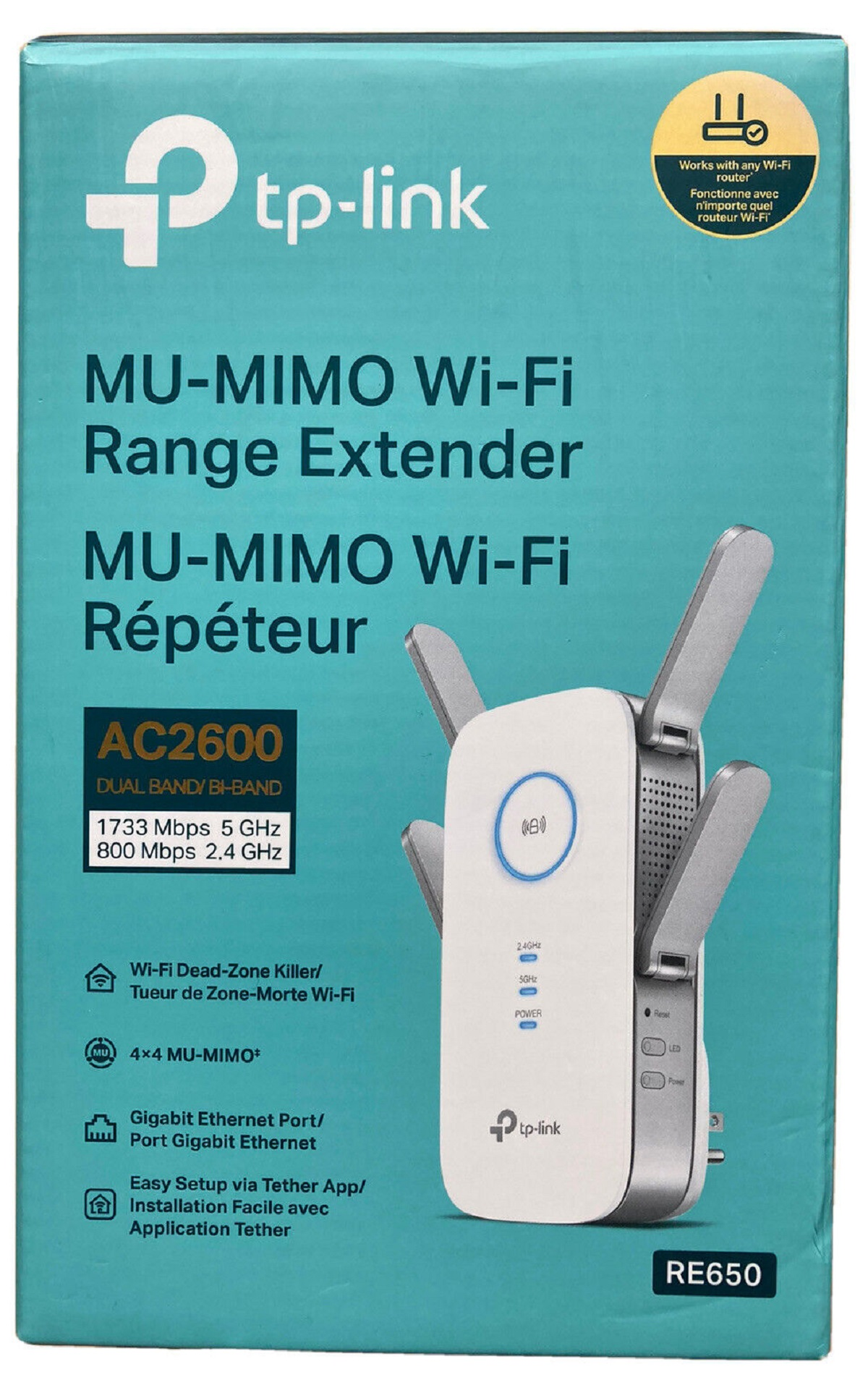
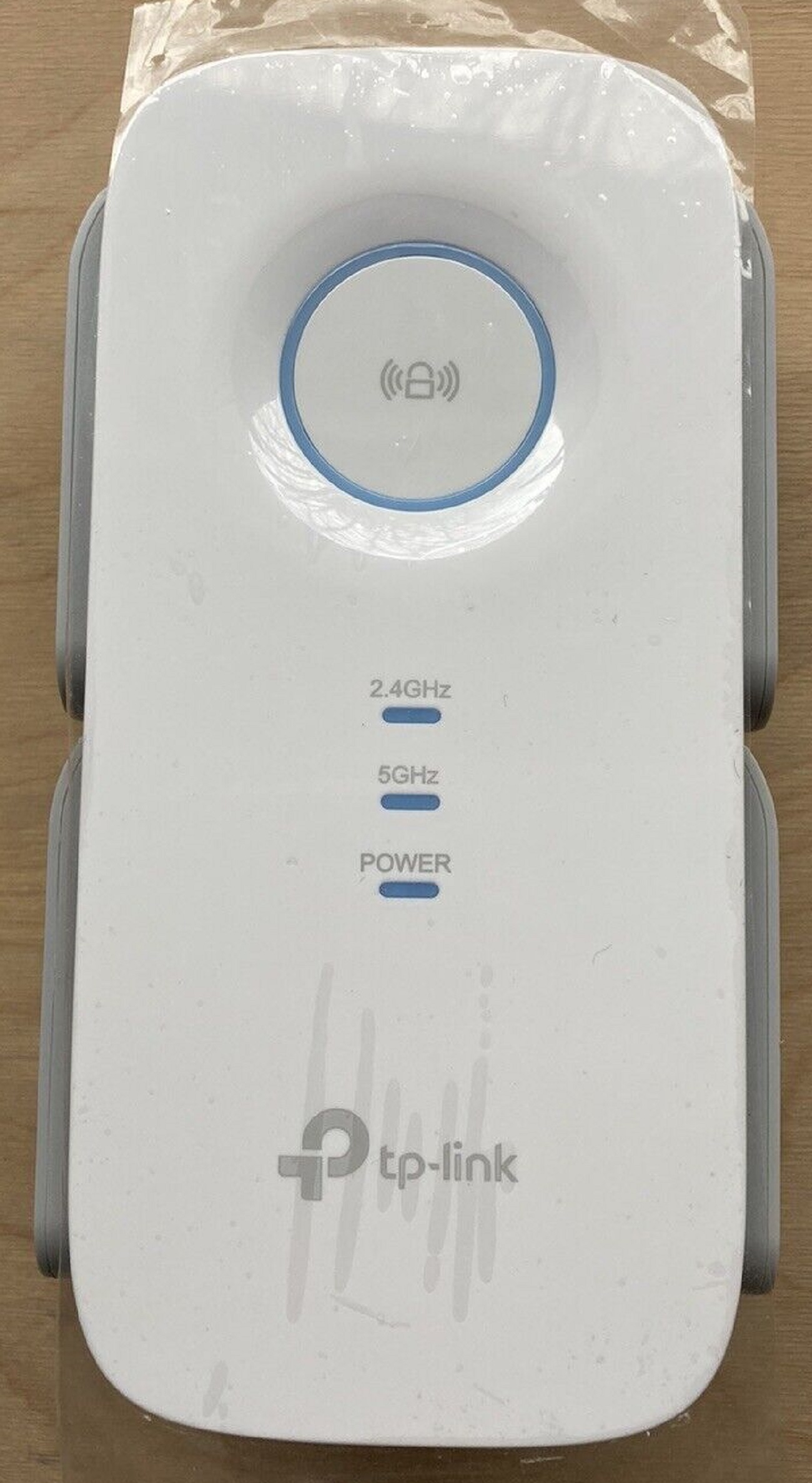
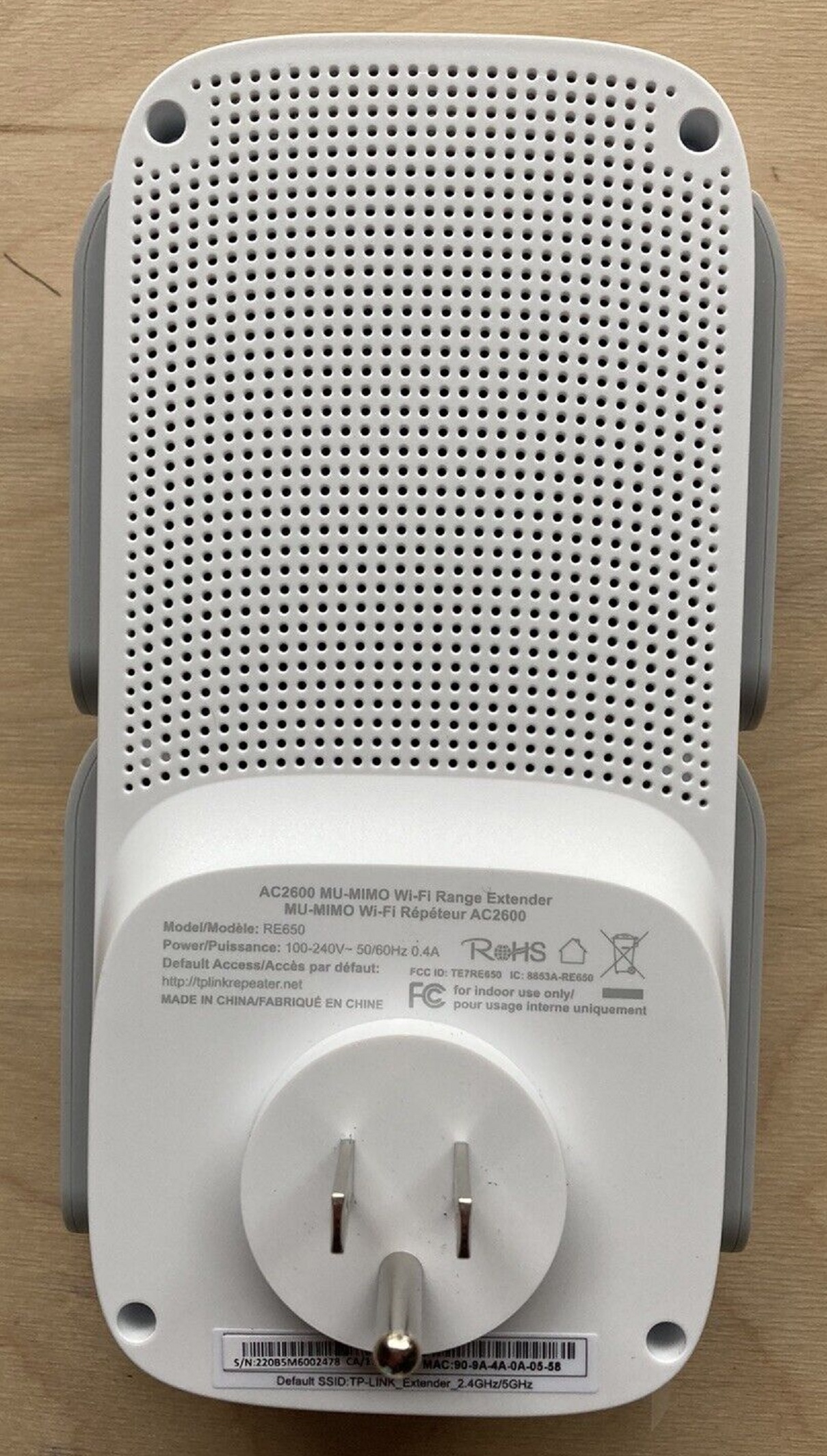
TP-LINK_Extender AC2600 Model RE650 V2 110-220V
NETGEAR N300 AC2200 Model EX7500 100-220V
NETGEAR X4S AC2200 Model EX7500 100-220V
NETGEAR Model EX6120-100CNS AC1200 220 100-220V
Urant Technology AC1200M WiFi Range Extender Repeater Router User Guide
https://manuals.plus/shenzhen-urant-technology/ac1200m-wifi-range-extender-repeater-router-manual#quick_installation_guide
wifi AP/Repeater
https://www.youtube.com/watch?v=XxQ3BY-VVkA
https://www.youtube.com/watch?v=AhC96Y5DD5s
(wifi-router pass lebanon1):
?How to Set up TP-Link Range Extender RE650 via Web Browser
ChatGPT
Setting up a TP-Link Range Extender, such as the RE650, typically involves connecting to its web interface using a web browser. Here are general steps you can follow:
Note: Before you begin, make sure that your TP-Link Range Extender is powered on and in a location where it can receive a stable Wi-Fi signal from your existing router.
Connect to the Extender:
Plug in your TP-Link Range Extender in a location within the range of your existing Wi-Fi network.
Wait for the extender's LED lights to stabilize. The Power LED should be solid, indicating that the extender is ready.
Connect Your Device to the Extender:
On your computer or mobile device, go to the list of available Wi-Fi networks.
Connect to the Wi-Fi network with the SSID (network name) that corresponds to your TP-Link extender (e.g., TP-Link_Extender).
Open a Web Browser:
Open a web browser on your connected device. Common browsers include Google Chrome, Mozilla Firefox, Microsoft Edge, or Safari.
Access the Extender's Web Interface:
In the address bar of your web browser, enter the default IP address for TP-Link extenders: http://192.168.0.1 or http://tplinkrepeater.net and press Enter.
Login:
You should be prompted to enter a username and password. By default, the username and password are often both set to "admin." Enter these credentials and click or tap "Login."
Configure the Range Extender:
Follow the on-screen instructions to configure your range extender. This may include selecting your existing Wi-Fi network and entering its password, choosing a network name (SSID) for the extended network, and setting a password for the extender itself.
Complete the Setup:
After entering the required information, follow the prompts to complete the setup. The extender may need to reboot during this process.
Reconnect to Your Wi-Fi Network:
Once the setup is complete, reconnect your computer or mobile device to your original Wi-Fi network. The extender is now operational, and you should experience improved Wi-Fi coverage in the extended area.
Remember that specific steps might vary slightly based on the model of your TP-Link Range Extender. Always refer to the user manual provided with your device for detailed instructions.
https://www.tp-link.com/ca/support/download/re650/v1/
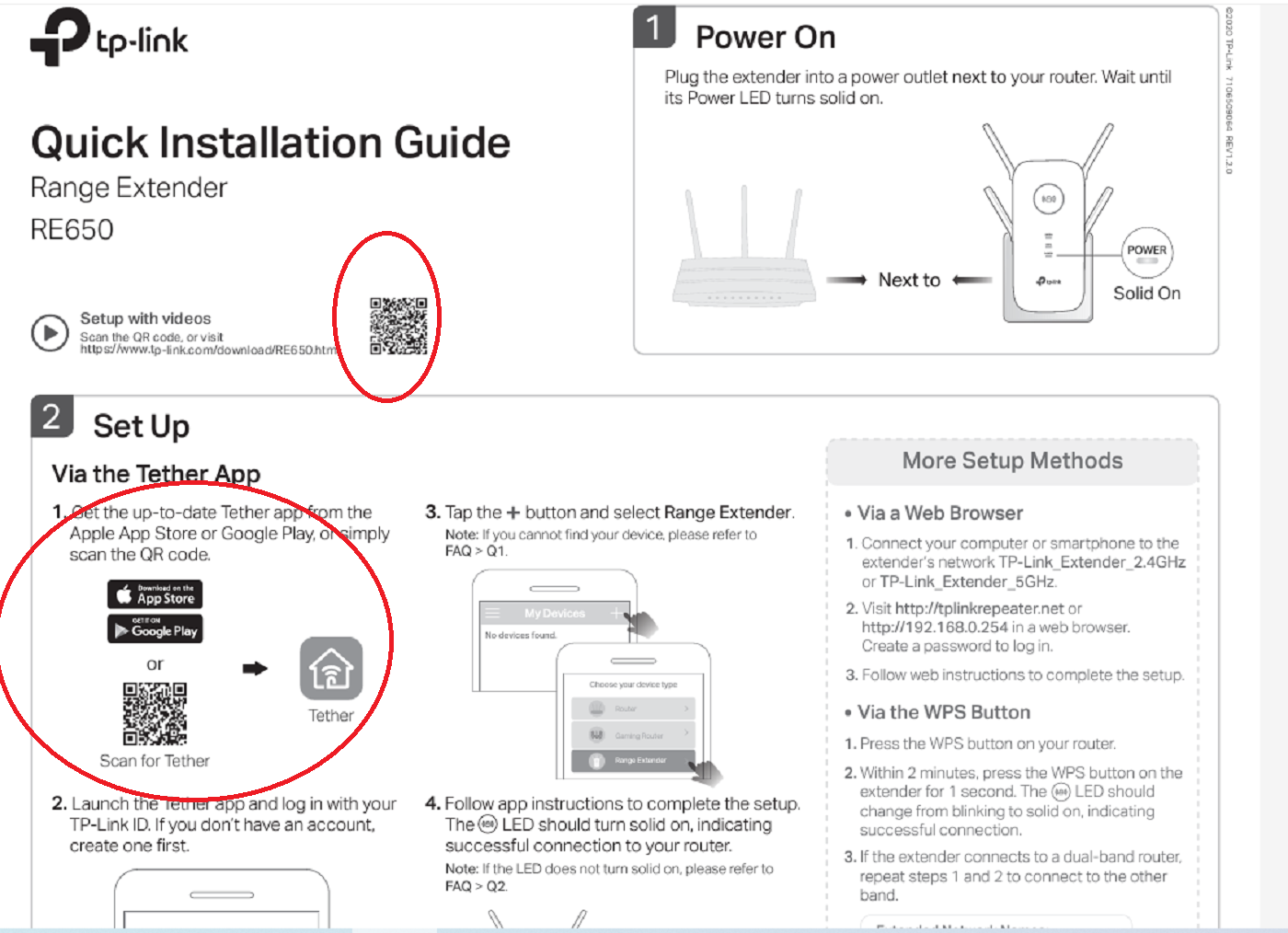
To get the Tether App we have to scan the QR Code
on Quick installation gide PDF suivante:
chrome-extension://efaidnbmnnnibpcajpcglclefindmkaj/https://static.tp-link.com/2020/202011/20201130/7106509064_RE650(EU)1.0_QIG_V1.pdf
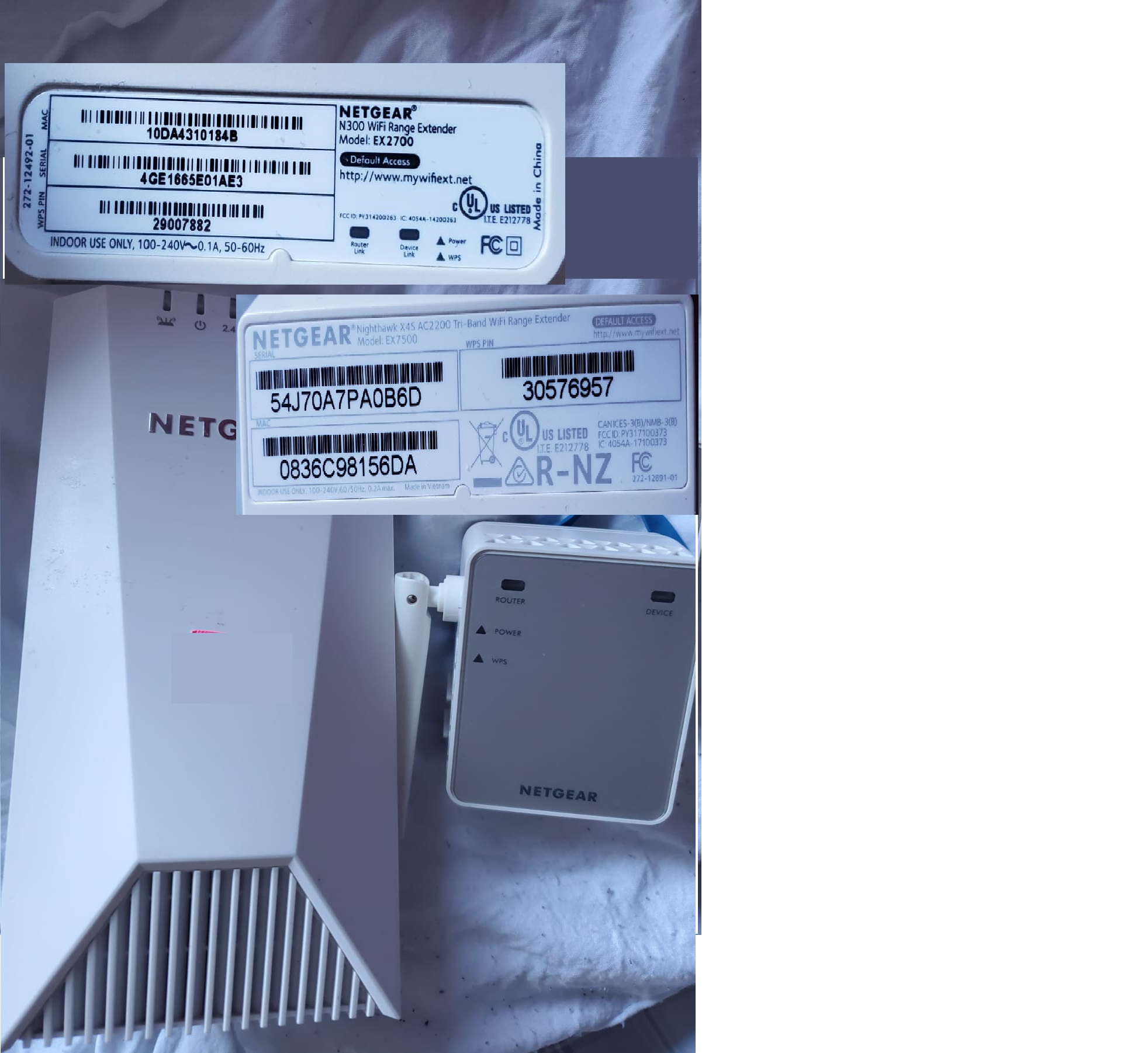 NETGEAR N300 AC2200 Model EX7500 100-220V & NETGEAR X4S AC2200 Model EX7500 100-220V
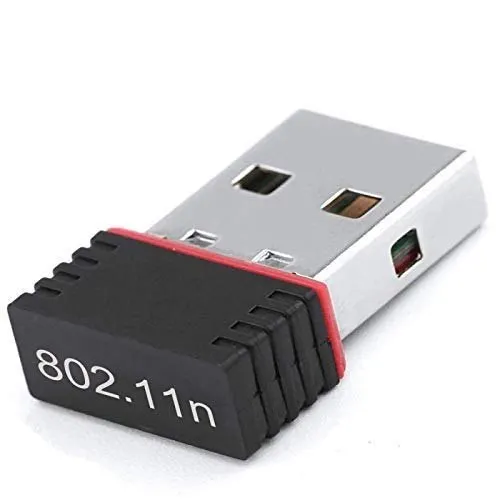 802.11n USB nano Wireless
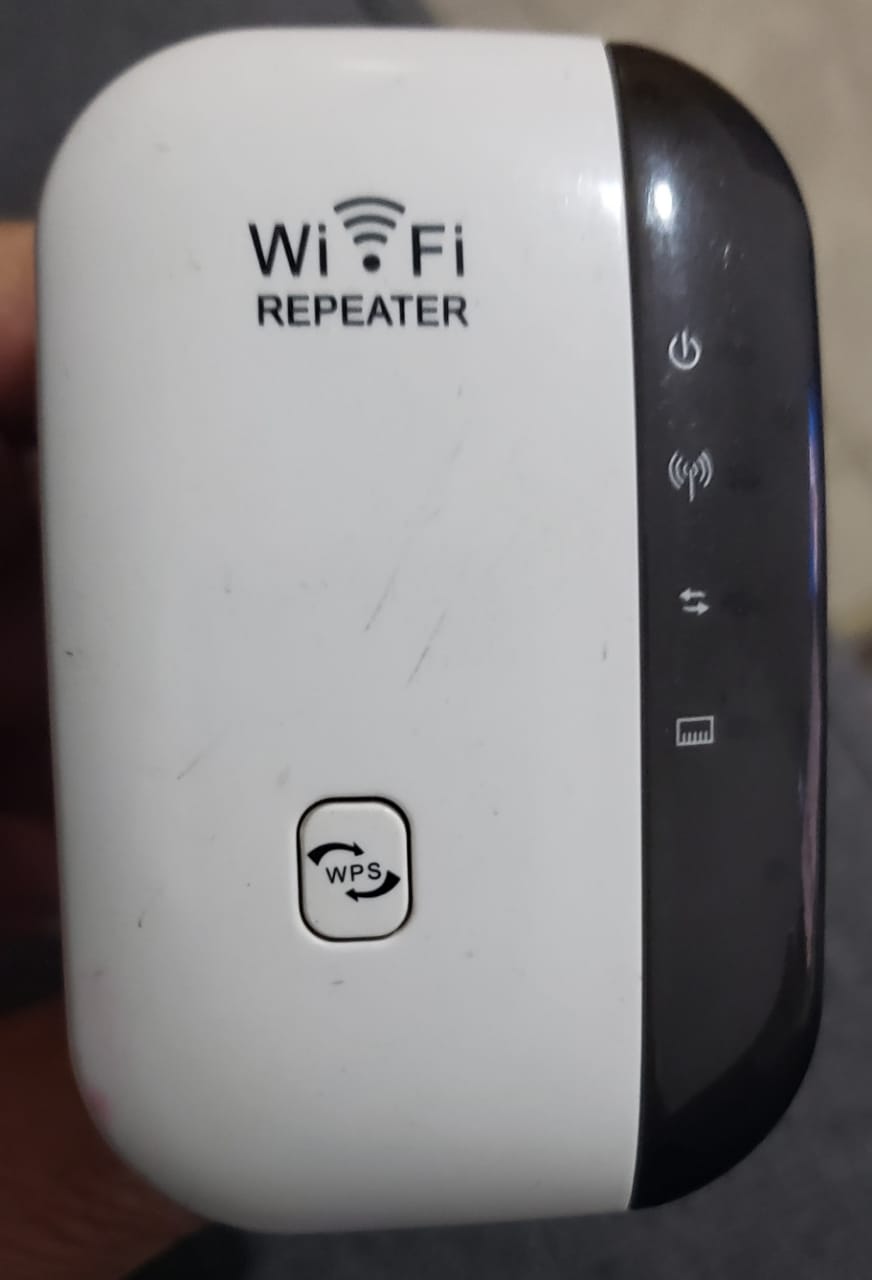 wifi AP/Repeater
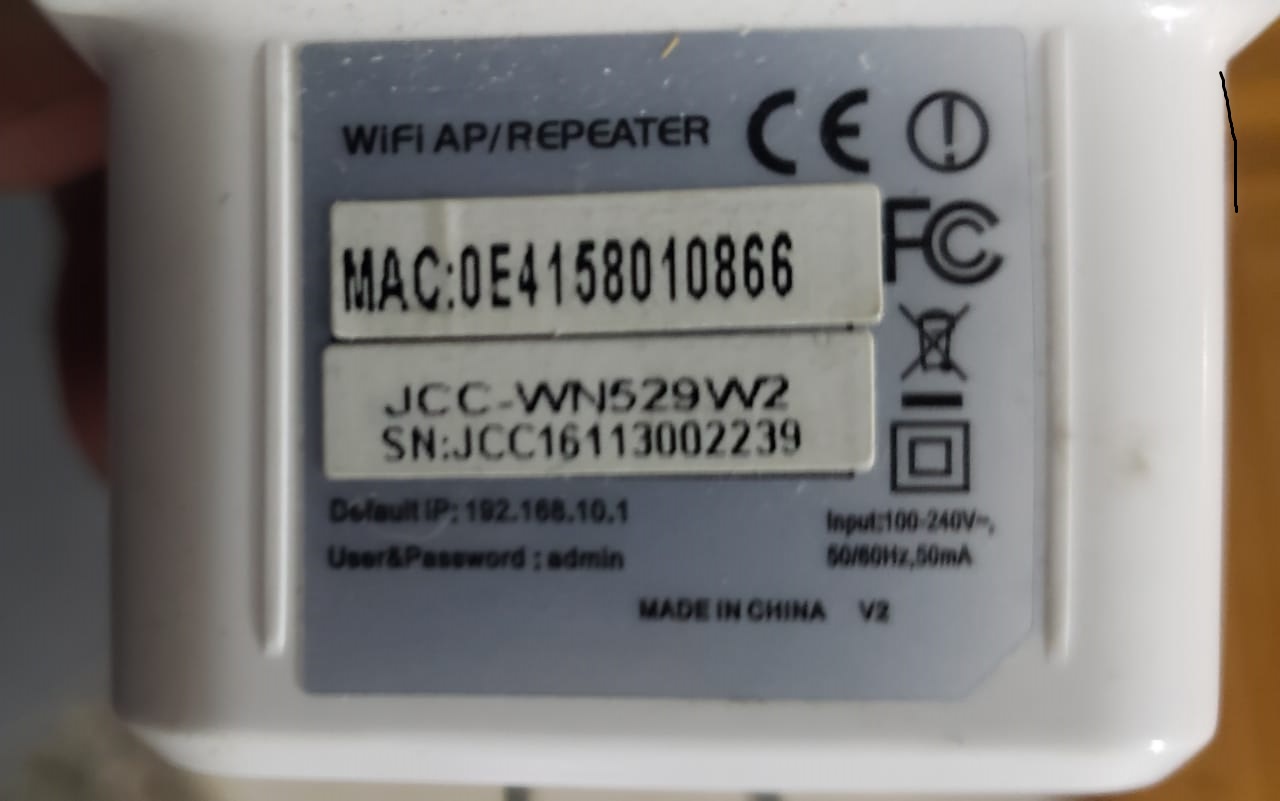 wifi AP/Repeater
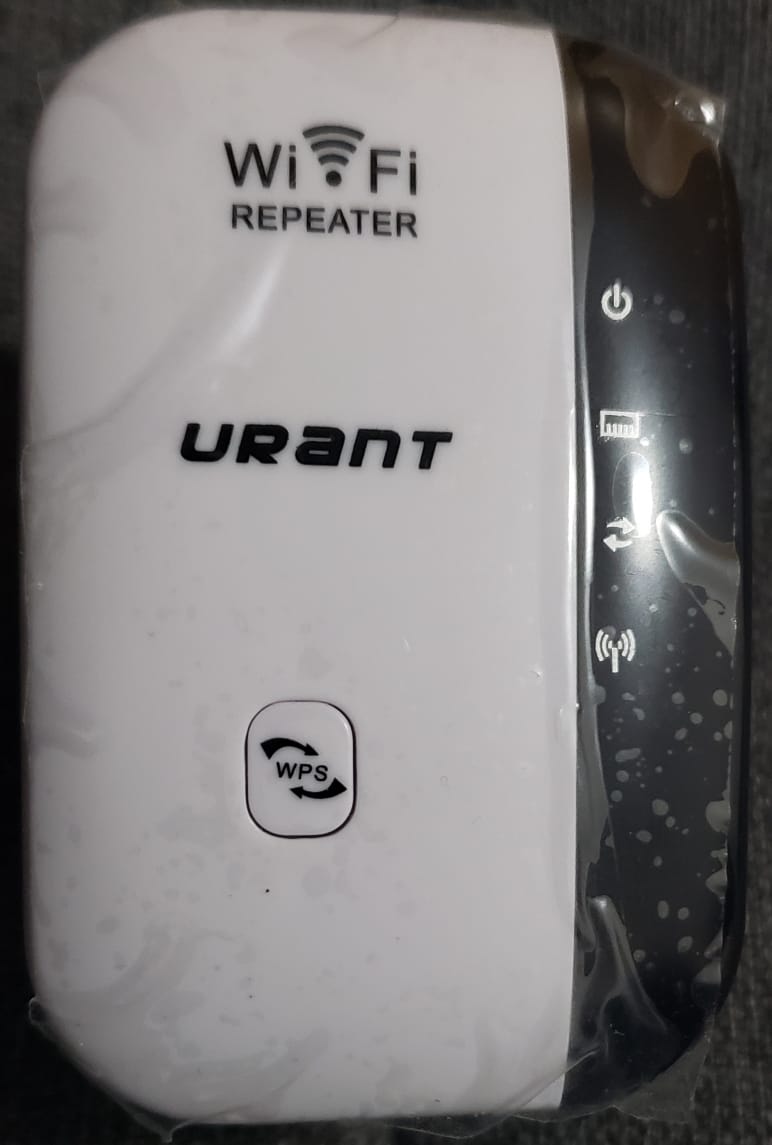 Urant AC1200M
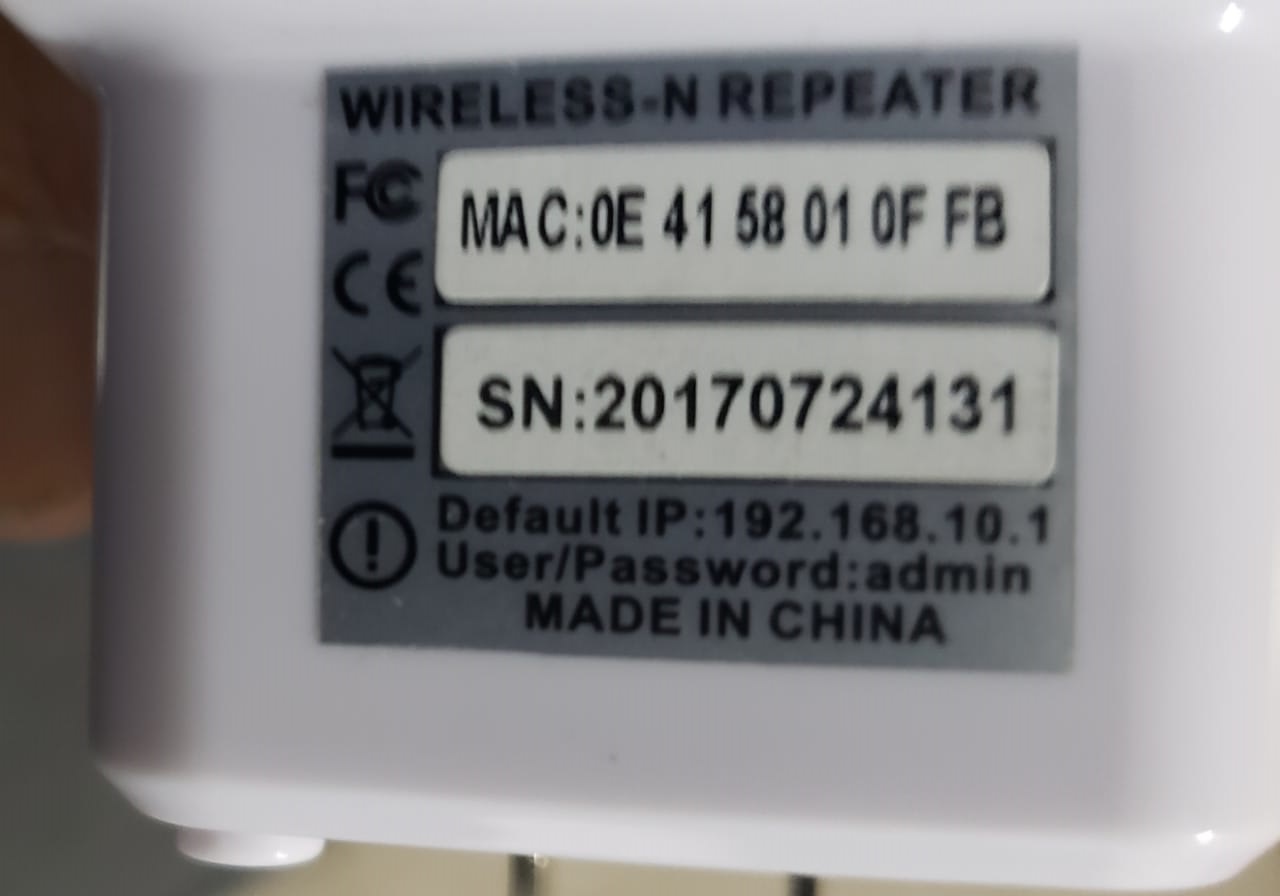 Urant AC1200M